
Rocket League in the Cloud: How to Play, Optimize, and Select the Right Service in 2026

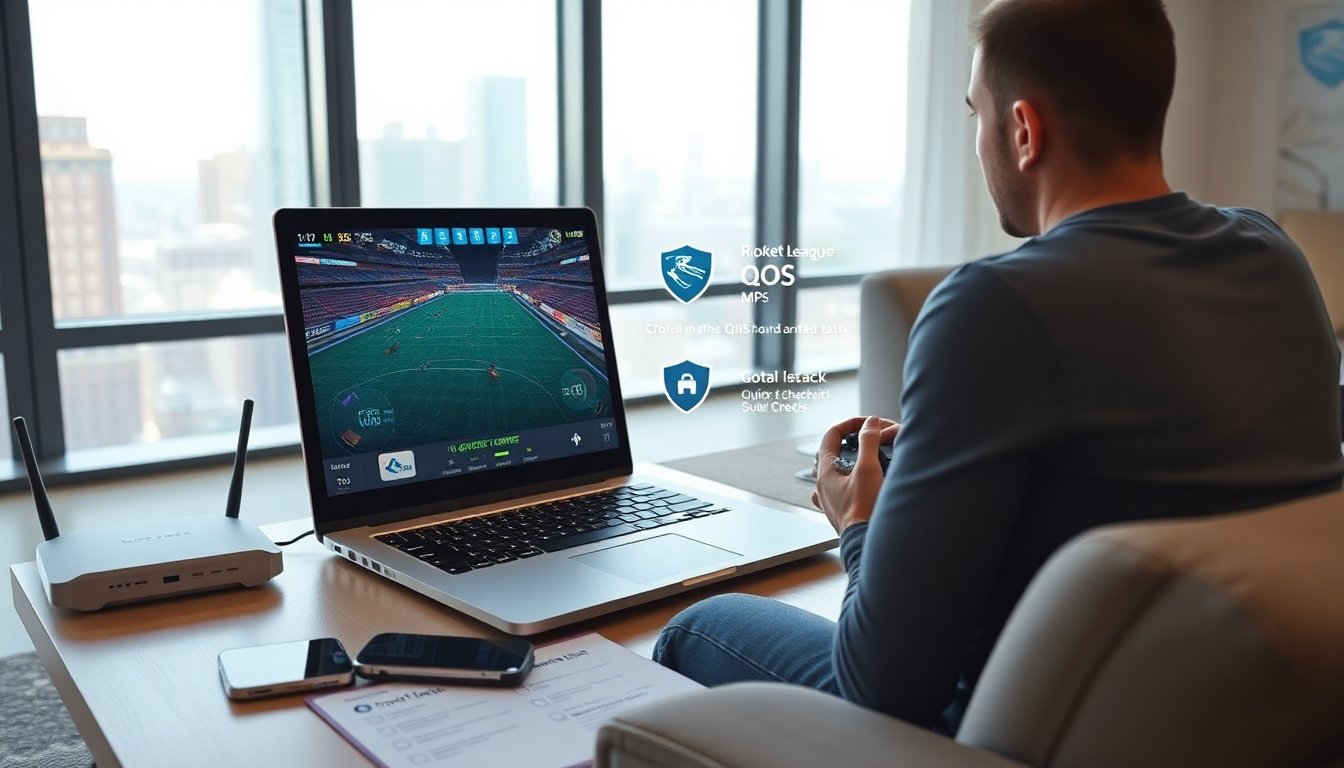
rocket league cloud gaming lets players stream matches without a high-end PC. It lowers hardware cost and speeds setup. It shifts rendering to remote servers and sends video to the player. It still needs a stable internet connection and low latency. This guide explains what players should expect and how they should prepare.
Key Takeaways
- Rocket League cloud gaming allows playing without high-end PCs by streaming the game from remote servers, reducing hardware costs and simplifying setup.
- A stable internet connection with low latency (under 30 ms ping) and sufficient bandwidth (15+ Mbps for 1080p) is essential for smooth Rocket League cloud gaming.
- Using wired Ethernet connections and wired controllers can significantly reduce input lag and provide the best gameplay experience on cloud platforms.
- Players should choose cloud gaming services that explicitly support Rocket League, offer nearby servers, and provide features like controller passthrough and input polling rate preservation.
- Testing performance through casual matches and trial periods helps ensure the selected cloud gaming service meets latency and stability needs before ranked play.
- Cloud gaming offers convenience and accessibility on multiple devices but may impact visual fidelity and input responsiveness compared to local play, important to consider for competitive players.
What Cloud Gaming Means For Rocket League Players
Cloud gaming for Rocket League means the game runs on remote machines. The service encodes video and streams it to the player. The player sends input back to the server. This model removes the need for a fast local GPU. It allows play on thin clients, phones, and low-end laptops. It can speed access to updates and cross-play. It can also change how players feel input and visuals. Players should expect slight differences in response compared with a local PC. They should test before ranked matches. Rocket League cloud gaming also makes it easier to join from multiple devices.
Benefits And Limitations Of Playing Rocket League On Cloud Platforms
Cloud services reduce hardware cost and simplify setup for Rocket League cloud gaming. They let players jump into matches on older machines and mobile devices. They also centralize updates and offer instant access. But, latency can affect precision. Video compression can reduce clarity for small details. Connection drops can interrupt matches. Regional server choice can shape performance. Competitive players may notice input lag more than casual players. Cloud platforms can cut local maintenance and free storage. They may limit mods and local customization. Players should weigh convenience against the need for tight control and visual fidelity when choosing cloud play.
How To Set Up Rocket League For Cloud Play
Select a cloud gaming service that lists Rocket League explicitly. Create an account and link the player’s platform account when required. Install the provider app on the device and sign in. Launch Rocket League from the service dashboard. Adjust in-game settings to favor frame rate and clarity. Set resolution and quality based on bandwidth. Choose the nearest server region if the service allows it. Test with casual matches first to confirm performance. Reconnect and retry if the session drops. Keep drivers and controller firmware updated on the local device. For controllers, pair them before launching the stream for a stable link.
Internet, Latency, And Network Tips For Competitive Play
Use a wired Ethernet connection when possible for Rocket League cloud gaming. Wired links reduce latency and jitter. Set the router to give priority to gaming traffic using QoS. Close background apps that use upload or download bandwidth. Test latency with the service’s built-in tools if available. Aim for ping under 30 ms to the cloud server for serious play. Keep bandwidth above 15 Mbps for 1080p30, and above 35 Mbps for 1080p60 or 4K. Restart the router if lag spikes occur. Keep local Wi-Fi on a clean channel when Ethernet is not an option. Use a short, quality cable and avoid long runs with low-grade cable.
Controls, Input Lag Mitigation, And Controller Setup
Use a wired controller connection or an official wireless dongle for best results in Rocket League cloud gaming. Wired connections cut Bluetooth lag and packet loss. Set controller deadzones and sensitivity in-game to match streamed response. Reduce frame buffering in the service settings if the service exposes that option. Use high-performance mode on the device to prevent CPU throttling. Test button mapping before ranked play. If the service supports low-latency modes, enable them. Keep controller firmware current and replace worn thumbsticks to keep inputs consistent.
Best Cloud Gaming Services For Rocket League (Platforms And Features)
Several providers support Rocket League cloud gaming with different strengths. Service A focuses on low-latency regions and keeps bitrate high for clear visuals. Service B offers wide device support and simple pricing. Service C bundles other game subscriptions and gives cross-play tools. All three give automatic updates and save sync. Choose a service that lists Rocket League and shows server locations near the player. Check whether the service allows controller passthrough and whether it preserves input polling rates. Look for a trial period to test local performance. Read recent user reviews for reliability in the player’s region.
Pricing, Availability, And Which Service Is Right For You
Compare monthly fees and included resolution tiers for Rocket League cloud gaming. Check device compatibility and regional availability before committing. Budget players should prefer services with low monthly costs and basic 1080p support. Players who travel should pick services with broad regional coverage and good mobile apps. Competitive players should prioritize low-latency servers and high-frame-rate tiers even if the price is higher. Use short trials to measure real-world latency and stability. Cancel quickly if performance falls short. Re-evaluate the service every few months as providers update servers and pricing.


Wyoming Lottery: What Residents Need To Know In 2026 — Options, Laws, And How To Play

Wyoming Lottery: What Residents Need To Know In 2026 — Options, Laws, And How To Play

Quick Picks And Lottery Winners: How Many Winners Use Random Numbers (2026 Update)

Quick Picks And Lottery Winners: How Many Winners Use Random Numbers (2026 Update)

How To Play Rocket League: A Beginner’s Guide To Winning Faster (2026)

How JRPGs Teach Life Lessons That Self-Help Books Miss

Why Sports Matter in Everyday Life

What are Entrepreneurs Doing to Unwind Throughout the Day?

Potential Lucrative Business Ideas Within the iGaming Industry for Entrepreneurs

How to Evaluate an AI-Generated Psych Report Like a Pro (Without Starting Over)
Rocket League in the Cloud: How to Play, Optimize, and Select the Right Service in 2026
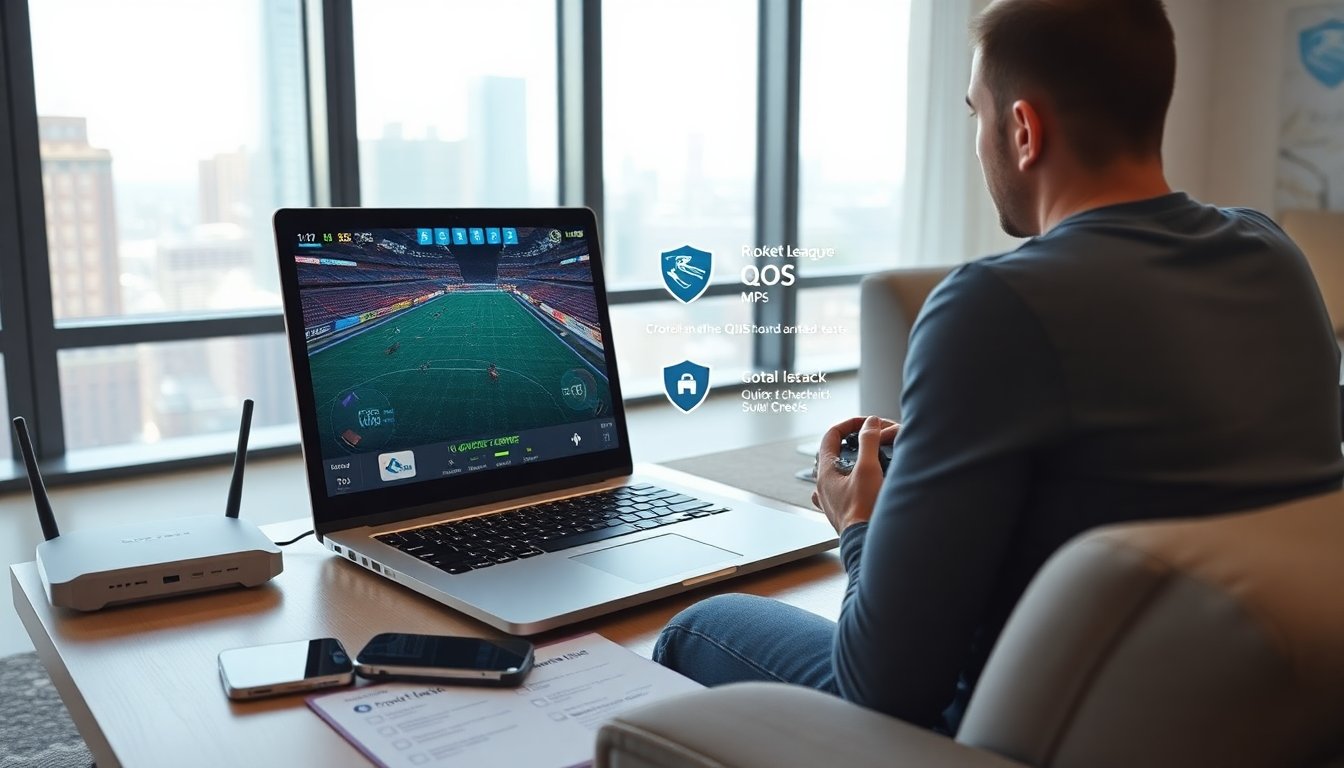
rocket league cloud gaming lets players stream matches without a high-end PC. It lowers hardware cost and speeds setup. It shifts rendering to remote servers and sends video to the player. It still needs a stable internet connection and low latency. This guide explains what players should expect and how they should prepare.
Key Takeaways
- Rocket League cloud gaming allows playing without high-end PCs by streaming the game from remote servers, reducing hardware costs and simplifying setup.
- A stable internet connection with low latency (under 30 ms ping) and sufficient bandwidth (15+ Mbps for 1080p) is essential for smooth Rocket League cloud gaming.
- Using wired Ethernet connections and wired controllers can significantly reduce input lag and provide the best gameplay experience on cloud platforms.
- Players should choose cloud gaming services that explicitly support Rocket League, offer nearby servers, and provide features like controller passthrough and input polling rate preservation.
- Testing performance through casual matches and trial periods helps ensure the selected cloud gaming service meets latency and stability needs before ranked play.
- Cloud gaming offers convenience and accessibility on multiple devices but may impact visual fidelity and input responsiveness compared to local play, important to consider for competitive players.
What Cloud Gaming Means For Rocket League Players
Cloud gaming for Rocket League means the game runs on remote machines. The service encodes video and streams it to the player. The player sends input back to the server. This model removes the need for a fast local GPU. It allows play on thin clients, phones, and low-end laptops. It can speed access to updates and cross-play. It can also change how players feel input and visuals. Players should expect slight differences in response compared with a local PC. They should test before ranked matches. Rocket League cloud gaming also makes it easier to join from multiple devices.
Benefits And Limitations Of Playing Rocket League On Cloud Platforms
Cloud services reduce hardware cost and simplify setup for Rocket League cloud gaming. They let players jump into matches on older machines and mobile devices. They also centralize updates and offer instant access. But, latency can affect precision. Video compression can reduce clarity for small details. Connection drops can interrupt matches. Regional server choice can shape performance. Competitive players may notice input lag more than casual players. Cloud platforms can cut local maintenance and free storage. They may limit mods and local customization. Players should weigh convenience against the need for tight control and visual fidelity when choosing cloud play.
How To Set Up Rocket League For Cloud Play
Select a cloud gaming service that lists Rocket League explicitly. Create an account and link the player’s platform account when required. Install the provider app on the device and sign in. Launch Rocket League from the service dashboard. Adjust in-game settings to favor frame rate and clarity. Set resolution and quality based on bandwidth. Choose the nearest server region if the service allows it. Test with casual matches first to confirm performance. Reconnect and retry if the session drops. Keep drivers and controller firmware updated on the local device. For controllers, pair them before launching the stream for a stable link.
Internet, Latency, And Network Tips For Competitive Play
Use a wired Ethernet connection when possible for Rocket League cloud gaming. Wired links reduce latency and jitter. Set the router to give priority to gaming traffic using QoS. Close background apps that use upload or download bandwidth. Test latency with the service’s built-in tools if available. Aim for ping under 30 ms to the cloud server for serious play. Keep bandwidth above 15 Mbps for 1080p30, and above 35 Mbps for 1080p60 or 4K. Restart the router if lag spikes occur. Keep local Wi-Fi on a clean channel when Ethernet is not an option. Use a short, quality cable and avoid long runs with low-grade cable.
Controls, Input Lag Mitigation, And Controller Setup
Use a wired controller connection or an official wireless dongle for best results in Rocket League cloud gaming. Wired connections cut Bluetooth lag and packet loss. Set controller deadzones and sensitivity in-game to match streamed response. Reduce frame buffering in the service settings if the service exposes that option. Use high-performance mode on the device to prevent CPU throttling. Test button mapping before ranked play. If the service supports low-latency modes, enable them. Keep controller firmware current and replace worn thumbsticks to keep inputs consistent.
Best Cloud Gaming Services For Rocket League (Platforms And Features)
Several providers support Rocket League cloud gaming with different strengths. Service A focuses on low-latency regions and keeps bitrate high for clear visuals. Service B offers wide device support and simple pricing. Service C bundles other game subscriptions and gives cross-play tools. All three give automatic updates and save sync. Choose a service that lists Rocket League and shows server locations near the player. Check whether the service allows controller passthrough and whether it preserves input polling rates. Look for a trial period to test local performance. Read recent user reviews for reliability in the player’s region.
Pricing, Availability, And Which Service Is Right For You
Compare monthly fees and included resolution tiers for Rocket League cloud gaming. Check device compatibility and regional availability before committing. Budget players should prefer services with low monthly costs and basic 1080p support. Players who travel should pick services with broad regional coverage and good mobile apps. Competitive players should prioritize low-latency servers and high-frame-rate tiers even if the price is higher. Use short trials to measure real-world latency and stability. Cancel quickly if performance falls short. Re-evaluate the service every few months as providers update servers and pricing.